Remove Objects from Photos and Video with AI: 2026 Test
How to remove an object, sticker or text from a photo or video with AI: describe it or paint over it. Real tests of five image models, masks vs words, and costs.

To remove an object or text from a photo or video with AI, upload the file and either describe what should disappear or paint over it; the model fills the area by continuing the background around it. We compared five photo models with written instructions on 9 November 2026 and tested painted areas on 12 November 2026. When the area was painted, GPT Image 2.6 removed only the marked text in a photo and Gemini Omni Flash 1.2 removed it from every frame of a video, while an identical-looking text elsewhere in the frame stayed exactly as it was.
Key findings
- Paint it when words are not enough. A mask (the painted area) told the photo model exactly where to work; it removed one text and kept the other.
- Don’t send a painted copy as a second image. The same model, given a red-painted copy instead of a mask, removed both texts.
- For video, name the area in words. The video model takes no mask, but “the bottom-right area from 52% to 97% of the width” removed only that text in all frames.
- GPT Image 2.6 was the most reliable photo model of five we tested on objects and text: clean in about 10 seconds.
- Costs: $0.18 per photo, about $0.63 for a 5-second 720p video in Cut Marketing (Cutma).
We make Cut Marketing, whose object removers use the models and methods below. The tests are ours; the numbers come from real calls, and the limits are listed at the end.
How we tested
We ran two rounds of real calls on our own showcase media, all of it fictional products.
- 9 November 2026, written instructions (Test 1 and the leaf-shadow clip): five image models, GPT Image 2.6, Seedream 5.0 Pro, Nano Banana 2.1, FLUX.3 Klein and Qwen Image 3.0 Pro, edited a product photo and an ad layout at about 2K. Gemini Omni Flash 1.2 in edit mode removed leaf shadows from a 5-second 720×1280 jewellery clip at 720p.
- 12 November 2026, marked areas (Tests 2 and 3): a still and a 5-second 9:16 clip, each with two overlay texts, “SAMPLE” at the top left and “@shop_kr” at the bottom right, with only the bottom-right one marked. GPT Image 2.6 got the photo with a mask or with a red-painted copy; Gemini Omni Flash 1.2 got the area in words, then the words plus the marked frame as a reference image. That round cost about $0.70 for two Omni runs and four image edits.
- Costs are what the provider charged for the run, not list prices: the leaf-shadow edit was charged $0.3129 for 5 seconds, shown here as $0.31. The prices under “How to do it in Cut Marketing” are Cut Marketing’s own credit prices.
- Limits: a few of our own images and two short clips. Nano Banana 2.1’s refusals happened in the watermark test, not in this one.
Describe it or paint it?
Describe the object when it is easy to name; paint it when it is small, irregular, or one of several similar items.
| Situation | Better way | Why |
|---|---|---|
| One object that is easy to name (“the coffee cup on the left”) | Describe it | Fast, and the model finds it |
| Small things: a price sticker, a handle, a tag | Paint it | Hard to point at with words |
| Similar things, only one should go (one of two texts, one of three cups) | Paint it | A description may remove all of them |
| An irregular shape: a cable, a shadow, a crack | Paint it | The brush follows the shape |
| A video | Mark it on one frame | The marked area is cleaned in every frame |
You can do both: paint the area and add a short note such as “the white handle text”. The note helps the model understand what it is replacing.
Test 1: which photo model removes objects best?
GPT Image 2.6 was the most reliable: it removed the paper backdrop and the headline cleanly in about 10 seconds and kept the rest of the text. Nano Banana 2.1 was also clean here but refused watermark prompts in our other test; the other three left a smudge, removed the paper only partly or shifted the layout.
We gave five image models the same product photo of a fictional bottle and two jobs: remove a paper backdrop behind the bottle, and remove a headline from an ad layout while keeping the rest of its text.
| Model | Object (paper backdrop) | Text (headline) | Time | Notes |
|---|---|---|---|---|
| GPT Image 2.6 | Clean | Clean, other text kept | About 10 s | Edges and small text stay sharp at 2K |
| Seedream 5.0 Pro | Clean | Faint smudge left | 85–106 s | Adds a paper-like texture to flat backgrounds |
| Nano Banana 2.1 | Clean | Clean | — | Refused some removal prompts in other tests |
| FLUX.3 Klein | Paper only partly removed | Clean | — | Not reliable for objects |
| Qwen Image 3.0 Pro | Clean | Layout shifted | — | Moves other elements |
Tested 9 November 2026 at about 2K with real calls. GPT Image 2.6 is what Cut Marketing’s photo remover uses.


Test 2: a mask or a painted copy?
A mask. With a mask, GPT Image 2.6 removed only the marked text; with a red-painted copy of the photo it removed both texts.
The harder case is two similar things where only one should go. We put two texts on one of our showcase photos, “SAMPLE” at the top left and “@shop_kr” at the bottom right, and marked only the bottom-right one. Then we sent the photo to GPT Image 2.6 in two ways:
- The photo plus a mask: a PNG of the same size, transparent only where we painted.
- The photo plus a copy of it with the area painted translucent red, and an instruction to clean the red area.
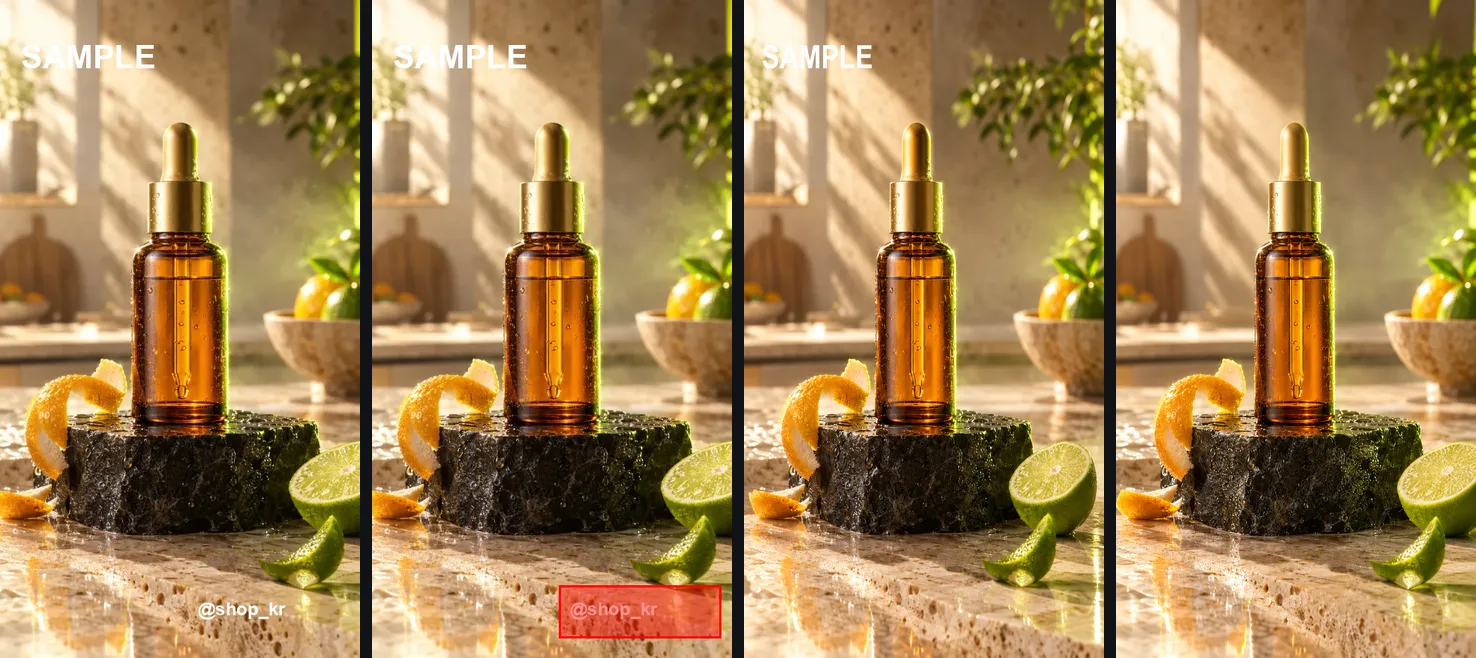
The mask did exactly what was asked. With the painted copy the model understood “remove the overlay text” and removed both, including the one we wanted to keep. The lesson for any tool: the mark has to reach the model as a mask, not as a second picture.
Test 3: can you mark an area in a video?
Yes, if the mark is turned into words. Described as a box in percentages of the frame, the marked text was removed from every frame of the clip and the other text stayed.
Video models take a clip and an instruction, not a mask. So we turned the marked box into words: “remove the overlay text inside the bottom-right area, from 52% to 97% of the frame width and from 89% to 97% of the frame height. Change nothing outside that region.” Gemini Omni Flash 1.2’s edit mode ran it on a 5-second 720p clip with the same two texts.
Adding the marked frame as a reference image gave the same result as the words alone, so the words are enough. The same model also removes real objects: in an earlier test it removed leaf shadows from the back wall of a jewellery shot and left the earrings, tray and light as they were.
How to do it in Cut Marketing
Open the photo or video object remover, upload your file, paint or describe what should go, and confirm your rights. A photo costs 18 credits and a 5-second 720p clip 63 credits.
- Open the photo object remover or the video object remover.
- Upload the file. Photos: JPG, PNG or WebP up to 10 MB. Videos: MP4, 3 to 15 seconds, 9:16 or 16:9, up to 50 MB.
- Under “Mark the area”, press “Mark on the image” (or “Mark on a frame” for a video) and paint over what should go. The brush is selected first; switch to the rectangle for straight-edged things. For a video, pick a frame where the object is visible with the slider.
- Optionally add a short note about what it is.
- Confirm that you own the content or may edit it, and start. The cost is shown on the button before you begin.
| Photo | Video (720p) | Video (1080p, paid plans) | |
|---|---|---|---|
| Credits | 18 per photo | 12 per billed second | 18.08 per billed second |
| Example | $0.18 | 5 s clip: 63 credits ($0.63) | 5 s clip: 95 credits ($0.95) |
Video seconds are billed at 1.05 per second of the clip because the model also reads the input. 1 credit = $0.01; plans start at $9 a month for 900 credits, and new accounts get 30 trial credits. A failed job returns its credits. A cleaned photo can go straight into a video with “Make a video” on the result. Once an old promo text is gone from a clip, type the new hook, price and call to action as exact text in Finish the Ad, in the studio, add captions and narration, and export 9:16, 1:1 and 4:5 in one go.
Tips for clean results
Paint generously, remove one kind of thing per run, and check the result at full size.
- Paint a little beyond the edge of the object; a tight outline can leave a rim.
- Remove one kind of thing per run. Several different objects at once raise the chance that something else changes.
- Remove the shadow or reflection too. An object removed without its shadow leaves a ghost.
- For a video, mark the frame where the object is largest. If it moves across the frame, mark its whole path.
- Check the result at full size: small text, product edges and labels are where changes hide. Compare before and after with the slider on the result.
What AI removal cannot do
AI removal fills the area with a plausible guess, can change things nearby, and works on short clips only.
- It cannot recover what was never visible. A logo hidden behind a hand is invented, not restored.
- It can change things outside the area. Masks keep this small, but check the whole frame.
- Cut Marketing accepts clips of 3 to 15 seconds, and the output keeps the source’s 9:16 or 16:9 shape.
- These are small tests on a few of our own images. Results vary with the photo; treat them as directions, not guarantees.
Your rights come first
Only edit photos and videos you own or have permission to edit. Removing someone else’s watermark, logo or credit can infringe their rights. Cut Marketing asks for that confirmation on every removal, and our terms forbid removing marks from content you may not edit. Typical legitimate uses: a sticker or price tag in your own product shot, a cable or stain in your own photo, a passer-by in your own clip, an old promo text on your own video.
For burned-in subtitles, logos and watermarks on your own videos and photos, see our subtitle and watermark removal test. For backgrounds, see how to remove the background from product photos; for marketplace image rules, see AI product photo editing for marketplaces; and before you publish, review an AI product video.