Remove Background From Product Photos: Free and Batch Methods
Remove a product photo background with a free built-in tool for a few images, or batch AI for a catalog. Methods compared, hard cases fixed, Amazon rules.
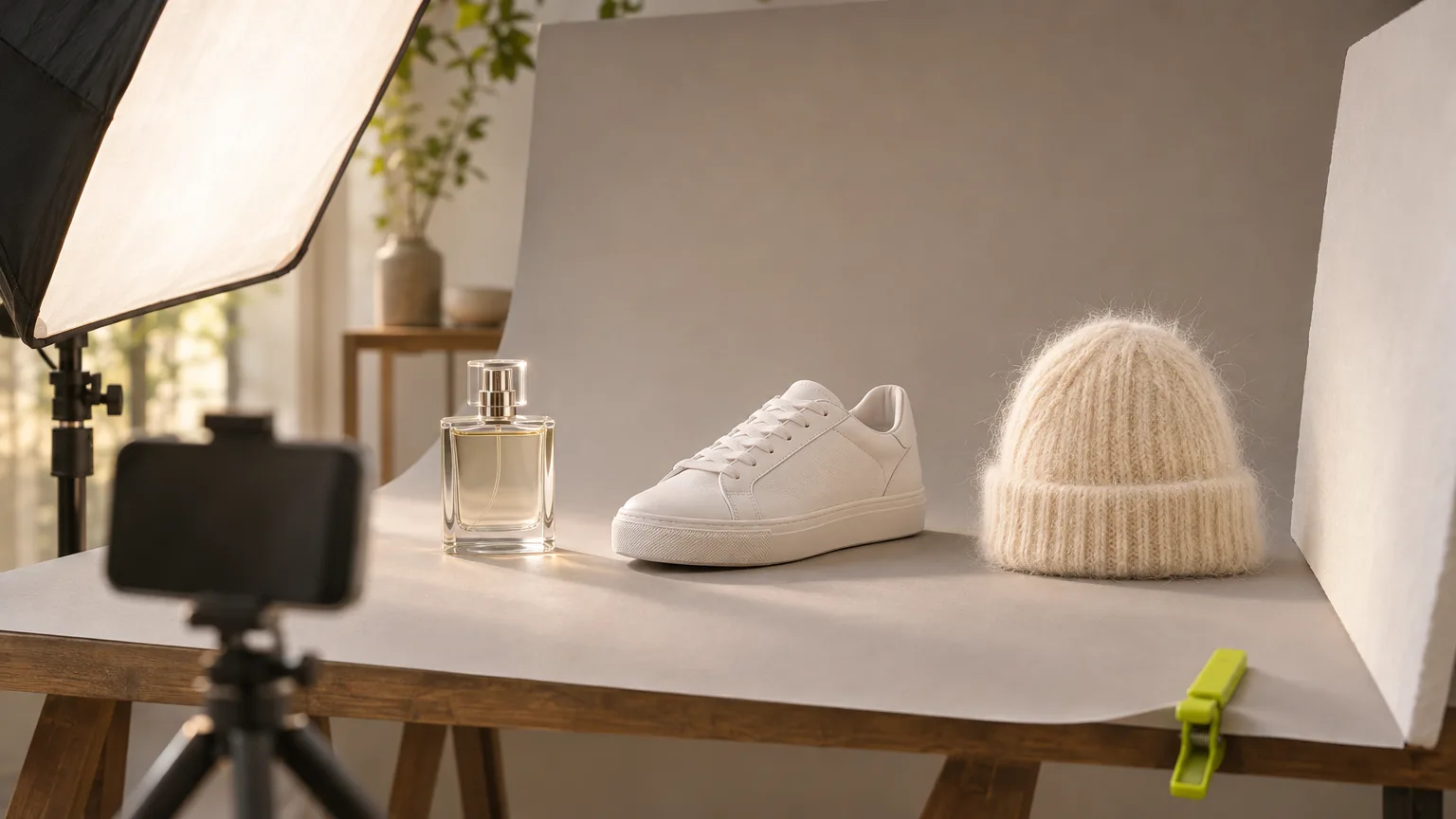
To remove the background from a product photo, use a free built-in tool when you have a few images (iPhone Photos, Mac Preview, Windows Photos) and a batch AI tool when you have a catalog. Either way, the cut-out is only as good as the photo: shoot the product on a background that contrasts with it, in soft even light, then place the cut-out on pure white (RGB 255,255,255) and export a JPEG if a marketplace main image is the goal.
We make Cut Marketing (Cutma), one of the tools compared here. The comparison is not based on a side-by-side test: details for the other tools come from their own official pages, checked on 11 November 2026 and linked in the table below.
Key takeaways:
- For 1 to 10 photos, the tools already on your phone or computer are enough and cost nothing.
- For dozens or hundreds of SKUs, batch processing saves the hours you would spend on single-image clicks. Cut Marketing charges 8 credits ($0.08) per image.
- Contrast between product and background matters more than the tool. White products go on grey, not white.
- Glass, hair, fur, wires and reflective surfaces need different shooting, not just a better algorithm.
- Amazon’s main image wants pure white RGB 255 and a product that fills 85% of the image. Coupang and Naver have their own guides.
- Keep a transparent PNG master and export a JPG on white for each marketplace.
This guide is about the cut-out itself. For the full edit order (enhance, cut out, expand, upscale) see AI product photo editing for marketplaces, and for Korean marketplace listing structure see Coupang and Naver Smart Store listing images.
How to shoot product photos that cut out cleanly
Cut-out tools find the edge where the product stops. Make that edge obvious and almost any tool works.
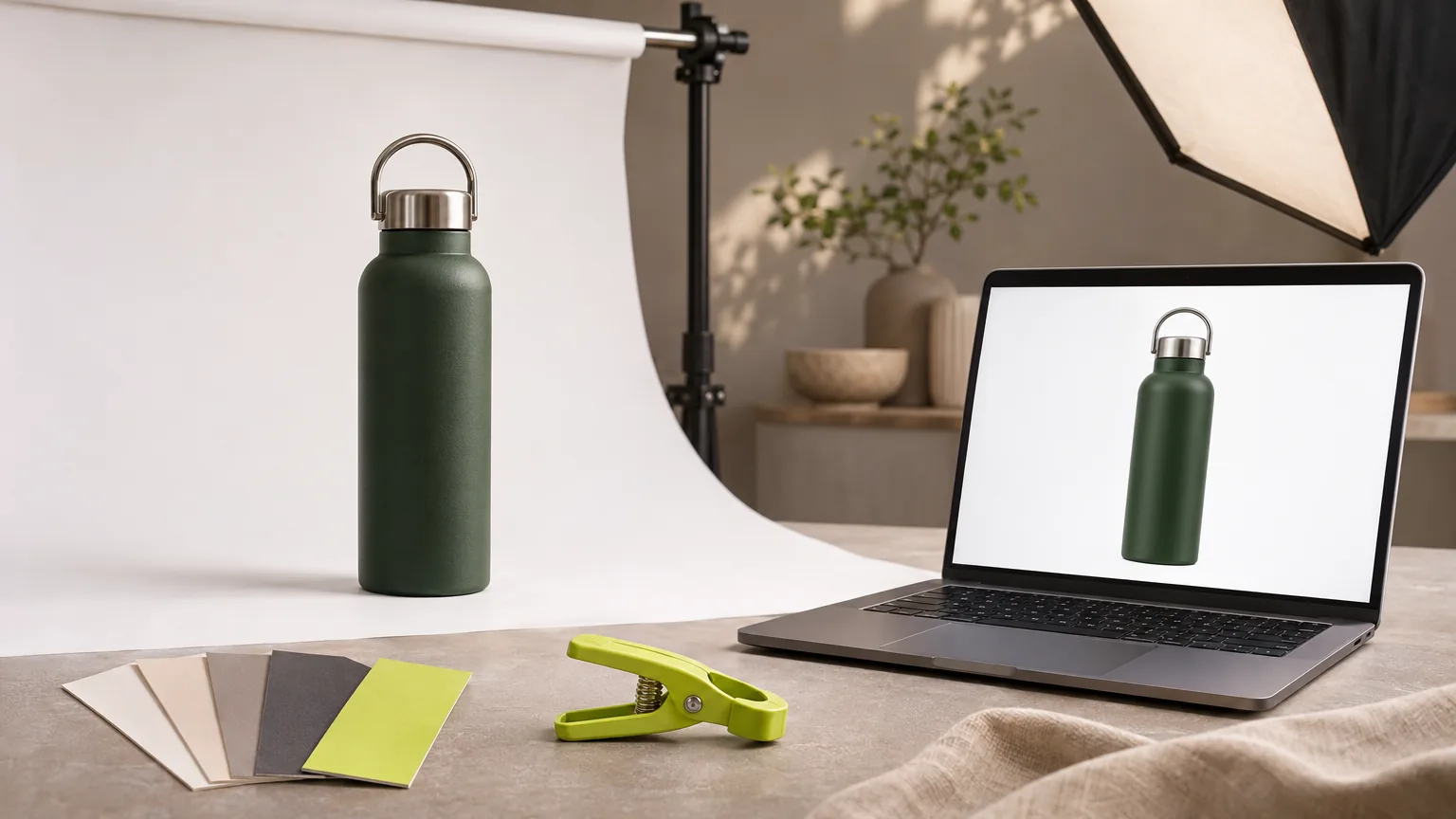
- Pick a contrasting background. A dark product on white, a white or pale product on mid-grey or a colour. You are going to throw the background away, so choose whatever separates best.
- Use soft, even light. A window with a thin curtain or a softbox at 45 degrees. Hard sun creates dark shadows that tools read as part of the product.
- Pull the product away from the backdrop. Leaving roughly half a metre to a metre between product and backdrop stops coloured light bouncing onto the product and keeps the backdrop’s texture out of focus.
- Shoot from further back with the 2x or 3x lens. Standing back and zooming optically reduces the wide-angle distortion that makes bottles look bulbous. Avoid digital zoom, which throws away pixels.
- Leave margin. Keep space around the product so the tool sees a full outline and you can crop to the marketplace’s ratio later.
- Lock exposure and white balance. On a phone, tap and hold to lock focus and exposure. Shoot every SKU in the same setup so the catalog looks consistent after the background is gone.
- Shoot at full resolution. Amazon enables zoom from 1,000 pixels on the longest side, Etsy recommends at least 2,000 pixels and Shopify says 2,048 x 2,048 usually displays best. Start bigger than the largest size you need.
One shortcut is worth knowing: if you already shoot on a seamless white sweep, you may not need a cut-out at all. Brightening the background to 255 with Levels or Curves often keeps soft shadows and glass edges more natural than cutting out and re-placing the product.
Free and paid background removal methods compared
The free tools built into iPhone, Mac, Windows and Android work one photo at a time; Canva, Photoshop and Cut Marketing add batch processing for larger catalogs. Checked on 11 November 2026 on each vendor’s official page. Prices and limits change, so confirm before you buy.
| Method | Cost | Batch | Output | Best for |
|---|---|---|---|---|
| iPhone / iPad Photos (lift subject) | Free, iOS 16 and later | No, one photo at a time | Copy, share or sticker | Quick cut-outs from photos already on your phone |
| Mac Preview (Remove Background) | Free | No | PNG with transparency | A few images on a Mac |
| Windows Photos (Background panel) and Paint | Free, processed on your device | No | Remove, or replace with a colour | A few images on Windows; Replace can fill white directly |
| Google Photos on Android (stickers) | Free | No | Sticker to copy or share | Previews and messaging; check resolution before listing use |
| Adobe Express | Free with limited daily use; Premium US$9.99/mo for unlimited Quick Actions | Batch for enterprise users | Transparent PNG; JPEG, PNG or WebP input up to 50 MB | Occasional single images in a browser |
| Canva | Paid plans only | Up to 50 images per folder | Photos under 9 MB; results above 10 MP are downscaled to 10 MP | Teams already designing in Canva |
| Photoshop (Remove Background quick action) | Subscription; see Adobe’s plans page | Yes, with recorded Actions | Layer mask you can refine by hand | Hero images and hard edges that need manual work |
| Cut Marketing Photo Editor Studio | 8 credits ($0.08) per image | 50 to 10,000 images per batch, by plan | Transparent cut-out at 1K, ZIP download | Catalogs: dozens to thousands of SKUs |
A note on remove.bg: its FAQ says the standalone website closes on 1 December 2026 at 9:00 CET. Background removal moves into Canva and API access moves to Leonardo.ai; enterprise API contracts continue as normal.
When the free tools are enough
If you list a few products a month, the built-in tools are hard to beat: lift the subject, paste it onto a white canvas, export. Windows Photos’ Replace option can fill the background with white directly. The limits show up with volume: every image is a separate set of taps, with no consistent framing.
When batch removal pays for itself
Batch matters when you have many SKUs, colour variants or a seasonal reshoot. At 8 credits per image, 100 photos cost 800 credits ($8 at the credit-pack rate), which fits inside the Starter plan’s 900 monthly credits for $9. 300 photos cost 2,400 credits, inside Creator’s 3,200 for $29. See pricing for the current plans.
Honest limits of our tool: each upload must be under 10 MiB, the cut-out comes back at 1K resolution, and like every automatic tool it can struggle with the hard cases below. If you need 2,000-pixel images for zoom on Etsy or Amazon, run 4K upscale (19 credits) after the cut-out and check labels at full size.
How to batch-remove backgrounds in Photo Editor Studio
The process has six steps, from collecting originals to exporting JPEGs on white.
- Collect originals. One folder, best-quality files under 10 MiB each, named by SKU.
- Test three hard images first. Pick your shiniest, most transparent and lightest products. New accounts get 30 trial credits once, which covers three cut-outs (24 credits).
- Upload the batch. Without a paid plan a batch holds up to 50 images; Starter 200, Creator 500, Pro 2,000, Business 10,000.
- Choose Background remover. The studio shows the total cost before you run it. Failed images release their reserved credits automatically.
- Download the ZIP. Open every image with fine detail at full size before it goes anywhere.
- Place on white and export. One ImageMagick command flattens a folder of 1K cut-outs onto white and pads each to a 1,000-pixel square, Amazon’s zoom threshold:
magick mogrify -background white -alpha remove -alpha off -resize 850x850 -gravity center -extent 1000x1000 -format jpg *.png. The product’s longest side then fills 85% of the frame. After a 4K upscale, use 1700x1700 and 2000x2000 instead.
Hard cases and how to fix them
Hair, glass, white-on-white, reflections, thin chains, shadows and colour shift cause most failed cut-outs, and most of them are easier to fix at the shoot than after.
| Problem | Why it fails | Fix at the shoot | Fix after |
|---|---|---|---|
| Hair, fur, fluffy knits | Thousands of semi-transparent strands | Plain contrasting background, light from the front | Refine edge brush in Photoshop; accept slightly smoother edge |
| Clear glass, liquids | Glass shows the background through it | Backlight through a white panel so edges render as dark lines | Shoot on real white and brighten to 255 instead of cutting out |
| White product on white | No edge to detect | Mid-grey or pale blue background | Cut out, then place on white |
| Reflections, chrome, gloss | Surroundings mirror in the product | Light tent, large diffused sources, rotate the product | Clone out stray reflections before cutting |
| Jewellery chains, cables, straps | Gaps smaller than the tool’s detail | Lay flat, spread the chain, shoot higher resolution | Inspect at 200%; fill missing links by hand |
| Shadows | Tools drop them or keep a grey blob | Soft light close to the product for a gentle contact shadow | Add a subtle, even shadow that does not change apparent size |
| Colour shift | Coloured bounce light or auto white balance | Grey card in a test frame, neutral backdrop | Compare against the physical product; export in sRGB |
Two cautions. First, a heavy drop shadow on a marketplace main image is risky: Amazon asks for pure white, and a large grey shadow makes the background read as off-white. Keep shadows subtle and check that the corners still measure 255. Second, AI cut-outs that re-render the image can soften small print. Read every label after processing.
Amazon, Shopify and Etsy image rules for cut-outs
Amazon requires a pure white main image with the product filling 85% of the frame; Shopify and Etsy do not require white, but set their own size limits.
Amazon. Amazon’s product image requirements ask for a main image on pure white (RGB 255, 255, 255) where the product fills 85% of the image, appears once and in full, and is shown only with accessories that come in the box. Images must be at least 500 pixels on the longest side and no more than 10,000; 1,000 pixels or more enables zoom. Accepted formats are JPEG (preferred), TIFF, PNG and non-animated GIF, in RGB. Amazon’s general image rules also exclude review stars, claims such as “free shipping” and Amazon badges, so keep added text, logos and watermarks off the main image.
Shopify. Shopify’s product media guide accepts images smaller than 20 MB and up to 5,000 x 5,000 pixels (25 megapixels), and says 2,048 x 2,048 pixels usually displays best. Your theme decides the background, so a transparent PNG or a consistent white JPG both work; pick one and use it across the catalog.
Etsy. Etsy’s listing photo tips recommend at least 2,000 pixels in width and height, need at least 635 pixels for the first photo, warn that files over 1 MB may not finish uploading on slow connections, and convert images to sRGB. White backgrounds are not required on Etsy, but a clean cut-out still helps thumbnails look consistent.
Coupang and Naver Smart Store. Both publish their own image guides for Korean sellers; our Korean marketplace listing guide covers how to plan those images.
Export settings that keep cut-outs clean
Keep a transparent PNG master, and export sRGB JPEGs on pure white for marketplace main images.
- Master file: PNG with transparency, at the highest resolution you have. Never overwrite the original photo.
- Marketplace main image: JPEG on a 255 white canvas, square unless the channel says otherwise, quality around 85 to 90.
- Colour: sRGB. Etsy converts to sRGB anyway; converting yourself means you see the final colours first.
- Check before upload: eyedropper on all four corners (255,255,255), edges at 200% for halos, product fill around 85%, file size under the channel’s limit.
Next step
Shoot three of your hardest products, run them through Photo Editor Studio on the trial credits and compare the edges against a free tool. If the batch output holds up, process the catalog. For what to do after the cut-out, read AI product photo editing for marketplaces and the Photo Editor Studio tool page.
The same cut-out can go further in the same studio. Selling in Korea? The detail page generator builds Coupang (780 px) and SmartStore (860 px) detail pages from your product. For a video ad, Product Video animates the photo, from 32 credits ($0.32) for an 8-second 1080p Veo 3.1 Fast clip, on plans from $9 a month.
FAQ
What is the easiest free way to remove a background from a product photo?
Use the tool already on your device. On iPhone or iPad, touch and hold the product in Photos and tap Copy or Share. On a Mac, open the image in Preview and click Remove Background. On Windows, the Photos app has a Background panel with a Remove option. These are fine for a handful of images but process one photo at a time.
How do I get a pure white background for an Amazon main image?
Cut the product out, then place it on a canvas filled with RGB 255,255,255 and export a JPEG. Amazon’s product image page asks for a pure white background and a product that fills 85% of the image, with at least 1,000 pixels on the longest side to enable zoom. Check the corners with an eyedropper: off-white pixels such as 250,250,250 are not pure white.
Should I upload a transparent PNG or a JPG on white?
Use a JPG on white for marketplace main images, because the marketplace decides how transparent areas are displayed and Amazon lists JPEG as its preferred format. Keep the transparent PNG as your master file for Shopify themes, ads and new backgrounds, and export from it whenever a channel needs a different background.
Why does background removal fail on glass and white products?
Cut-out tools look for an edge where the product’s colour or brightness differs from the background. Clear glass takes on the colours behind it, and a white product on a white sweep has almost no edge. Shoot white items on a mid-grey or coloured background and light glass from behind so its outline reads as a dark line.
How much does batch background removal cost in Cut Marketing?
The background remover in Photo Editor Studio costs 8 credits per image, which is $0.08 at the credit-pack rate. 100 product photos cost 800 credits, which fits inside the Starter plan’s 900 monthly credits at $9 a month. New accounts get 30 trial credits once, enough for three cut-outs.
How many images can I process in one batch?
In Cut Marketing, a batch holds up to 50 images without a paid plan, 200 on Starter, 500 on Creator, 2,000 on Pro and 10,000 on Business. Each upload must be under 10 MiB, and finished batches download as a ZIP file. In Canva, bulk removal works on folders of up to 50 images and needs a paid plan.
Is remove.bg still available?
Only until 1 December 2026. remove.bg’s FAQ says its standalone website stops at 9:00 CET that day, background removal moves into Canva, and API access moves to Leonardo.ai. Enterprise API contracts continue. If remove.bg is part of your workflow, plan the switch before then.