How to Compare Source and Rendered HTML
Find the headings, paragraphs and metadata that appear after JavaScript runs. Compare the two HTML snapshots in your browser.
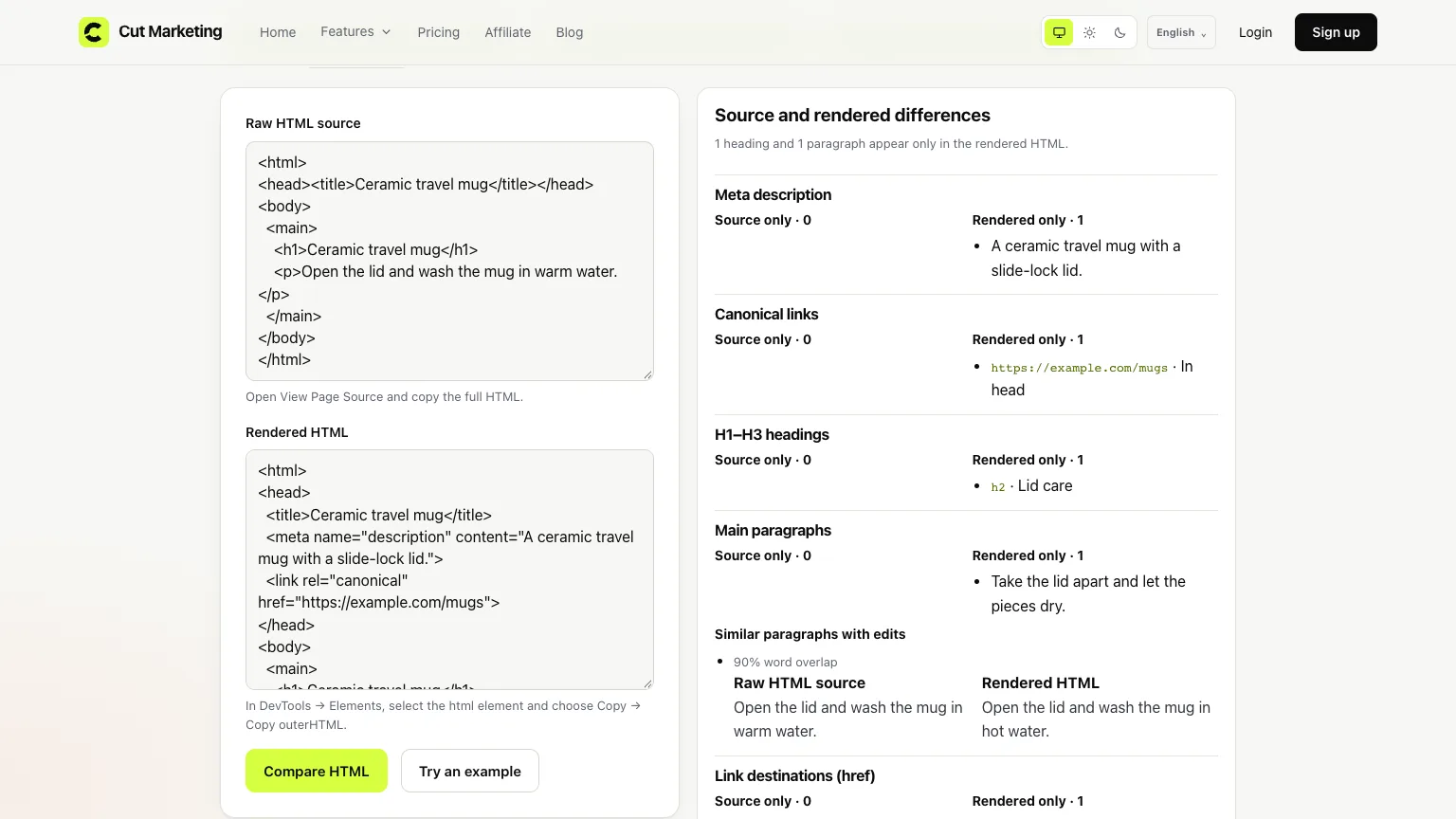
Cut Marketing’s source vs rendered HTML checker shows which headings and paragraphs arrived after the raw HTML. Paste both versions and it compares them in your browser, so you can check a page before it goes public.
On Cut Marketing’s public site, Astro builds our pages as static HTML. A guide like this one ships its title and text in the original response. Client-side code can still power the tools and interactive controls where we need them.
Capture two views of the same page
- Open View Page Source and copy the full HTML into the source field.
- Load the same URL and wait for its content. Open DevTools → Elements, right-click the
htmlelement and choose Copy → Copy outerHTML. Paste the result into the rendered field. - Start with the rendered-only counts. If an essential answer appears in this list, find the script or network request that supplies it. Use the same language, login state and page variant for both copies.
The tool compares title, meta description, canonical links and robots meta tags alongside h1 through h3, main paragraphs, link href values, image alt values and JSON-LD blocks. Main paragraphs come from main when present. Without it, the checker reads body paragraphs outside areas such as navigation and footers. It pairs likely paragraph edits using normalized word overlap. Read both versions where a wording change affects a price, instruction or claim.
What Googlebot does with JavaScript
Google describes crawling, rendering and indexing as distinct phases. It puts eligible pages in a rendering queue. When resources are available, headless Chromium executes JavaScript. Google checks for links again and uses the rendered HTML for indexing. The wait can vary, and blocking resources can change what renders. Google recommends server-side rendering or pre-rendering and points out that some crawlers can’t run JavaScript. Google’s JavaScript SEO guide
Use the comparison to find what depends on rendering. For a product page, check whether the specifications, care instructions and links to answers are already in the initial HTML. If your snapshots disagree on the canonical, use the canonical tag checker to see which declarations point to each address. Google advises keeping the canonical consistent between the source and rendered page. Google’s JavaScript SEO guide