Product Video From One Photo: A Step-by-Step Ad Guide
Turn one product photo into a video ad: pick a photo that animates well, prep it, choose tool, model and length, review, caption and export. Real credit costs.
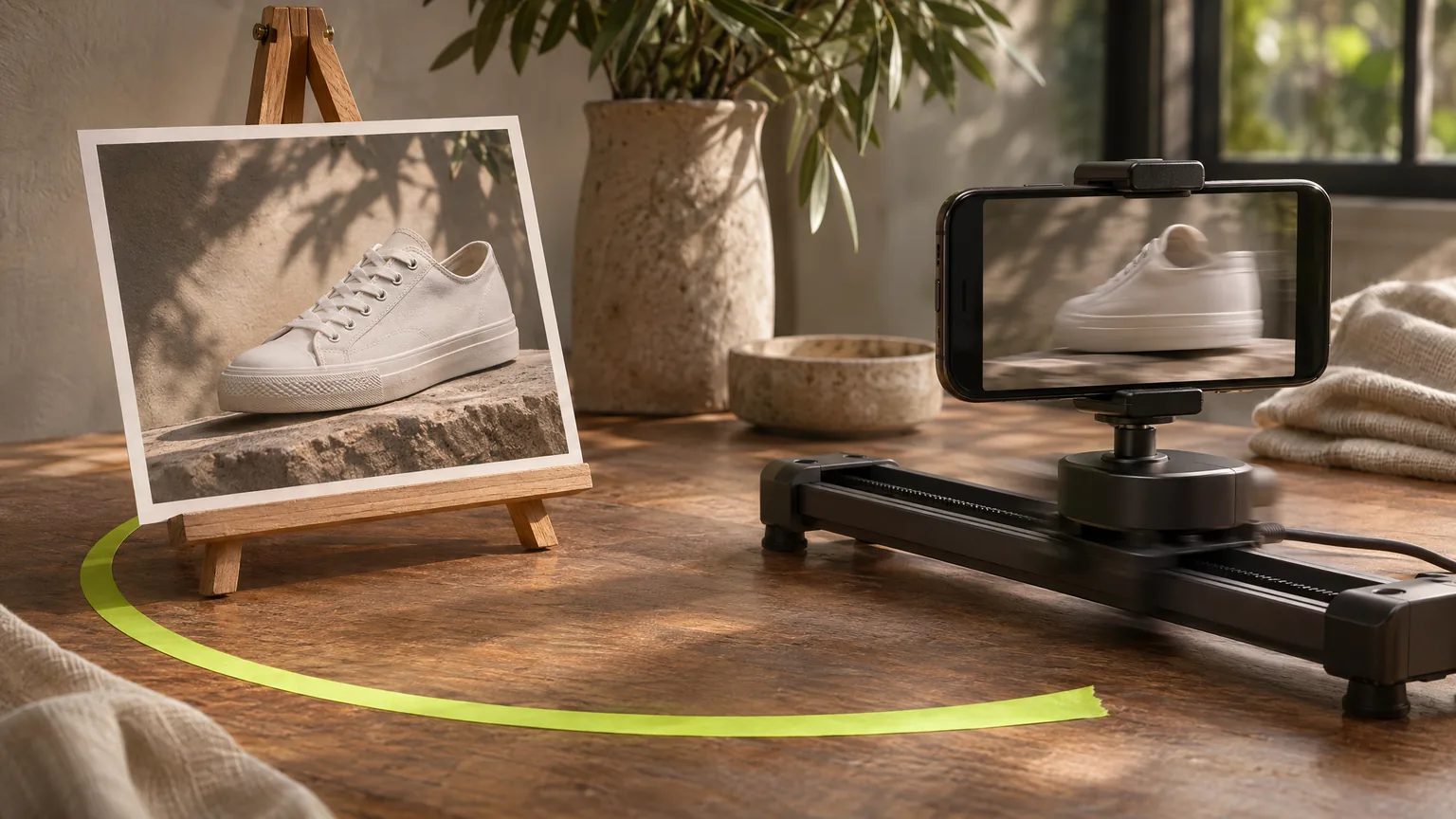
To make a product video ad from one photo, start with a sharp, well-lit photo of the whole product, extend it to the ratio you will publish, and give an image-to-video model one short motion brief: one action, one camera move and a line telling it to keep the product’s shape. Generate two to four variants, check each against the real product, then add captions, music and the call to action and export per platform. In Cut Marketing (Cutma) one clip costs from 32 credits ($0.32) to a few hundred, depending on model, resolution and length, and Finish the Ad in the same studio adds the text, music and narration and exports 9:16, 1:1 and 4:5 in one go.
Key takeaways
- The photo decides most of the result. Matte products with clear edges animate well; mirror-like, transparent and text-heavy products are the hard cases.
- Prepare the still first. Each edit costs 8 credits and saves paid video retakes.
- Choose the model per shot: Kling 4.0 for rigid products that must keep their shape, Seedance 2.5 for pours, steam, fabric and hands.
- Draft at low resolution, then render the final. A re-render is a new take, not an upscale of the draft.
- Captions, exact text, music and AI narration go on after generation, in Finish the Ad in the same studio.
Other posts cover single steps in depth, and we link to them rather than repeat them: prompts, hooks, specs, model comparison and costs. Prices below are from the Cut Marketing model list as of November 2026.
Which product photos work for AI video, and which fail
An image-to-video model uses your photo as the first frame and predicts every frame after it. Whatever it cannot see, it invents, and what it invents can drift.
| Photo or product trait | What tends to happen in motion | What to do |
|---|---|---|
| Matte surface, clear silhouette, whole product in frame | Holds shape and colour well | Best case |
| Chrome, mirror finish, glossy black | Reflections are re-invented every frame and swim | Diffused light; slow turntable or locked-off camera, no orbits |
| Glass, clear plastic, liquid in a clear bottle | Edges, contents and liquid levels wobble | Plain dark background behind the glass; short moves |
| Tiny labels, fine print, ingredient panels | Letters warp into lookalike glyphs | Frame wider; show the label in a real end card |
| Packaging covered in text, in any language | Text morphs as the pack turns | Turn the text side away, or keep the pack still |
| Product cut off by the frame edge | The model invents the missing part | Reshoot, or use Expand to add space |
| Thin parts: cables, chains, straps | Strands break, merge or multiply | Lay them flat; avoid fast moves |
| Badges, watermarks, marketplace overlays | Overlays smear or animate | Use the clean original file |
If a detail must be exactly right, such as label text, a certification mark or the item count, do not animate it. Show it in a real still added in the edit.
How to prepare the photo before you animate it
Do this in Photo Editor Studio, on one photo or a batch.
- Start from the original file, not a screenshot from your store. Uploads are limited to 10 MiB (JPEG, PNG or WebP).
- Fix light and colour with Enhance (8 credits) if the photo is dull or tinted. The video inherits whatever colour the still has.
- Remove a cluttered background (8 credits). A clean cut-out gives the model less to invent. For a styled scene, generate one from the cut-out with Reference Images and check it against the real product first.
- Set the ratio with Expand (8 credits) to 1:1, 4:5, 9:16 or 16:9 without cropping the product. With Seedance and Wan the clip follows the shape of the first frame, so a 4:3 photo gives a 4:3 clip.
- Upscale only if the photo is small or soft (19 credits). 4K upscale estimates detail and can sharpen letters into shapes that are not real text, so read the label afterwards and keep the file under 10 MiB.
The full order of operations is in AI product photo editing for marketplaces.
Which Cut Marketing tool should you use?
Three tools turn a product photo into video. They share the same models and prices; they differ in how much of the brief you write.
| Tool | Best for | You provide | Note |
|---|---|---|---|
| Product Video | Product shots you direct: turntable, push-in, pour, hands, lifestyle | One photo and your own motion prompt; model, ratio, resolution, length, sound on or off, 1 to 4 outputs | Most control; defaults to Seedance 2.5 |
| Product Shorts | Trying several short-form directions at once | One photo, selling points, market, language, platform and video types such as Product Demo, Lifestyle or Unboxing, up to 4 each | Writes each prompt for you; defaults to the low-cost Wan 3.0 |
| UGC Product Video | A presenter holding, unboxing or demonstrating the product | Product photo, presenters from the library, an action and a short script | One clip per presenter; exact dialogue and lip sync not guaranteed |
Before using presenters, read the AI ad disclosure rules: an AI presenter must never pose as a real customer.
Which model fits which shot, and what one clip costs
Video is billed per second: the model’s rate at your resolution times the length. The studio shows the total before you submit, and failed jobs release their credits.
| Shot | Model | Cheapest setting | Credits per clip, from |
|---|---|---|---|
| Rigid product on a turntable | Kling 4.0 | 720p, 5 s | 140 |
| Slow push-in on packaging | Kling 4.0 | 720p, 5 s | 140 |
| Pour, steam, food, fabric | Seedance 2.5 | 480p, 5 s | 100 |
| Hands using the product | Seedance 2.5 | 480p, 5 s | 100 |
| Many cheap hook variants | Wan 3.0 | 720p, 5 s | 70 |
| Place, mood, ambient sound | Gemini Omni Flash 1.2 | 720p, 4 s | 48 |
| Simple b-roll, lowest cost | Veo 3.1 Fast | 720p or 1080p, 8 s | 32 |
Higher resolutions and longer clips cost more, and the studio shows the exact total. Lengths are fixed per model: Seedance 2.5 offers 5, 8, 10 and 15 seconds; Kling 4.0 and Wan 3.0 offer 5 and 10; Veo 3.1 Fast makes 8 only. Without a paid plan video stops at 720p; Starter and Creator reach 1080p, Pro and Business 4K. Why each model suits these shots is in Seedance 2.5 vs Kling 4.0 vs Veo 3.1 Fast.
How to write the brief
The photo already shows the scene, so the prompt describes only what changes: one action, one camera move, any light change, the sound, what must not appear and a stability line.
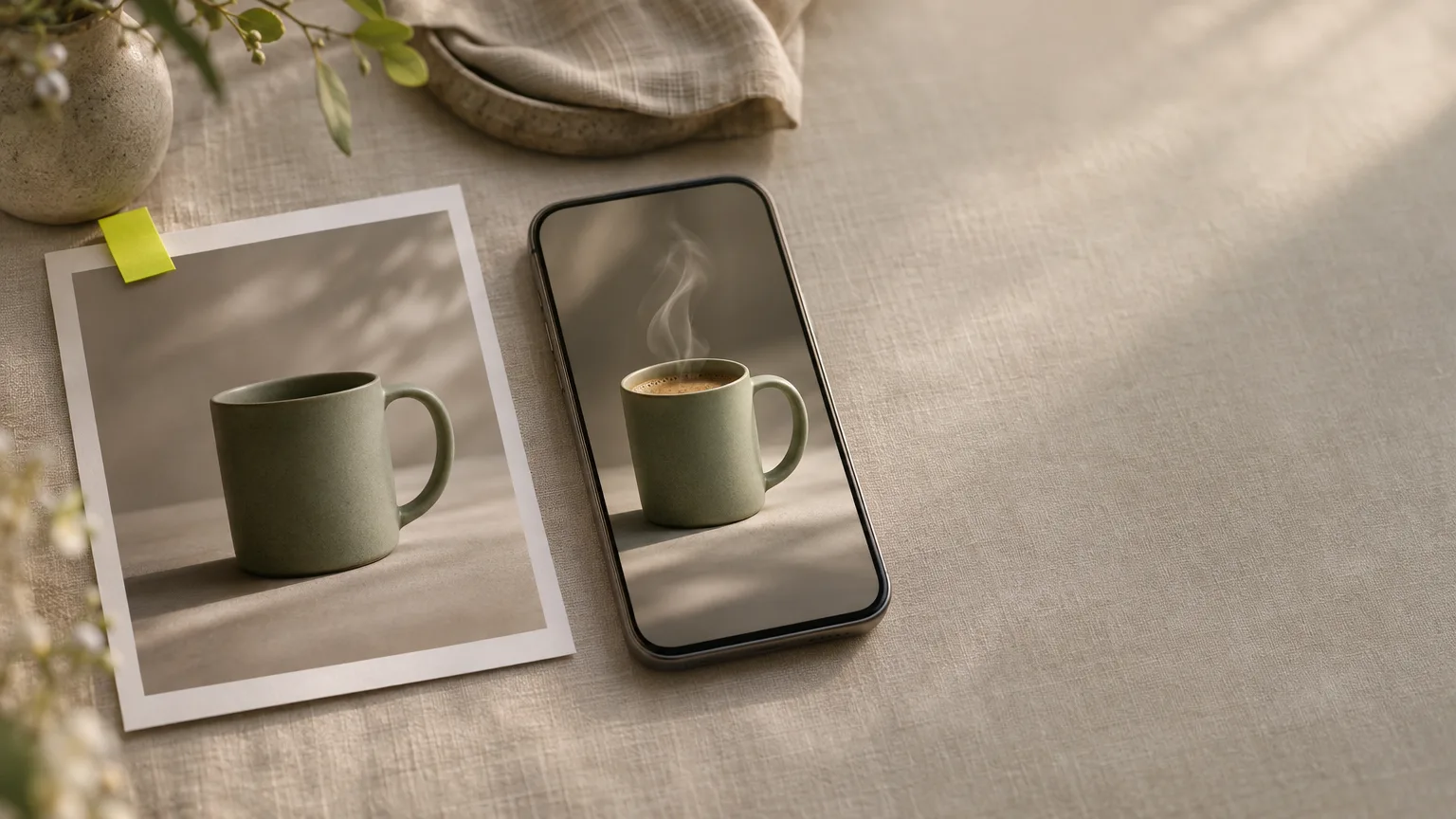
A thin curl of steam rises from the coffee in the mug, morning light slowly warms across the glaze, the camera holds steady with a gentle push-in. No text, no captions, no logos appear. The mug keeps its exact shape, colour and proportions throughout; smooth, stable motion with no warping.
- One action per clip. A second action is a second clip.
- Plan the first second around the product or the problem; see 12 hooks for the first 3 seconds.
- Turn sound off in Product Video if you will add music later; the model then makes a silent clip.
Shipped prompts and fix lines are in image-to-video prompts for product ads, and the camera study shows how little motion a still needs.
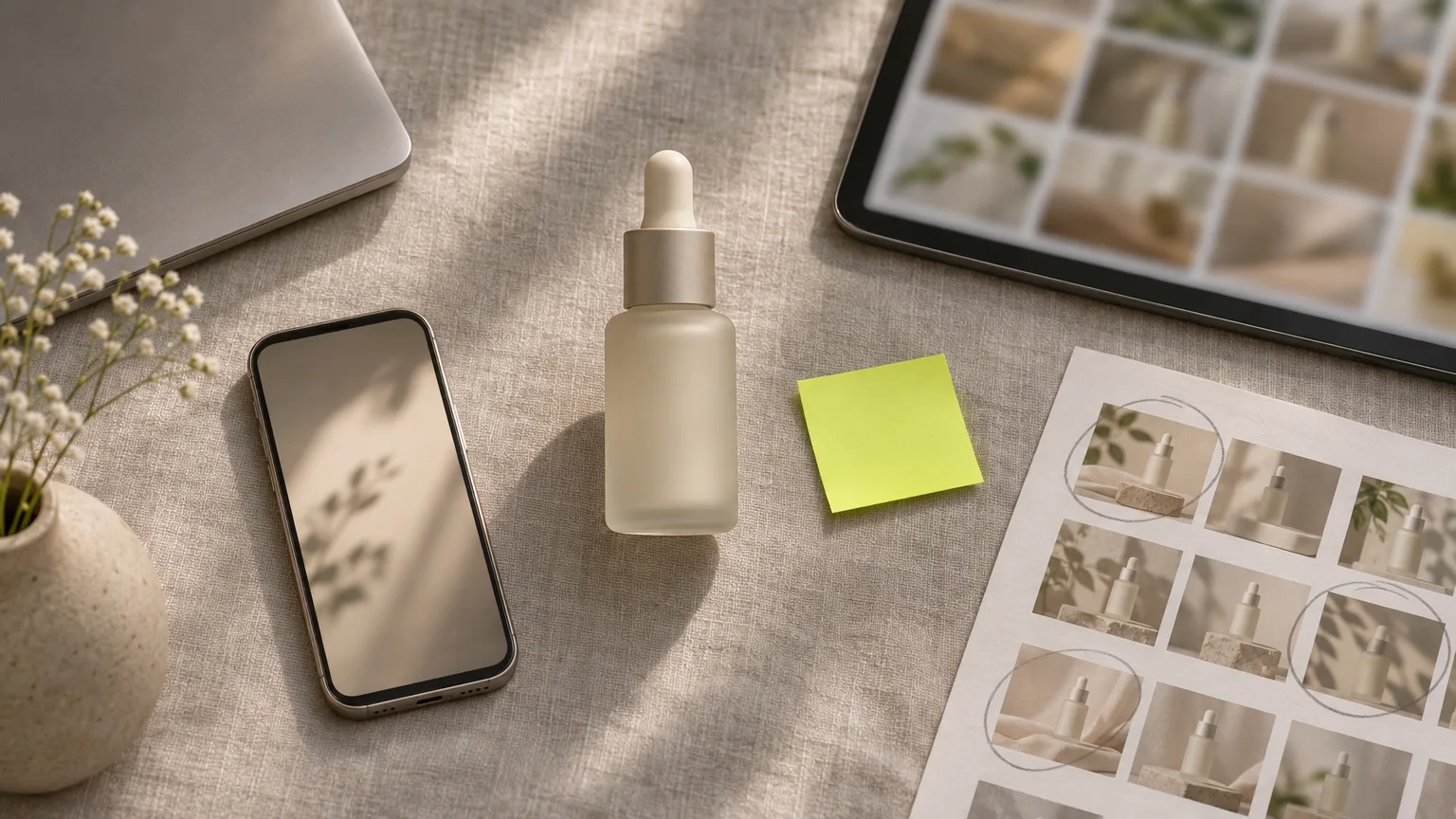
Generate 2 to 4 variants, then pick one
The same photo and prompt give a different take every time, so treat the first render as a draft.
- Set Outputs to 2 to 4 in Product Video. Each output is a separately billed clip.
- Draft at the lowest useful resolution: 480p on Seedance 2.5, 720p on Kling 4.0 and Wan 3.0.
- Change one thing between sets, such as the hook or the camera move, so you know what made the difference.
- Render the final at publishing resolution. It is a new generation, so budget for a possible second take.
Review checklist before you export
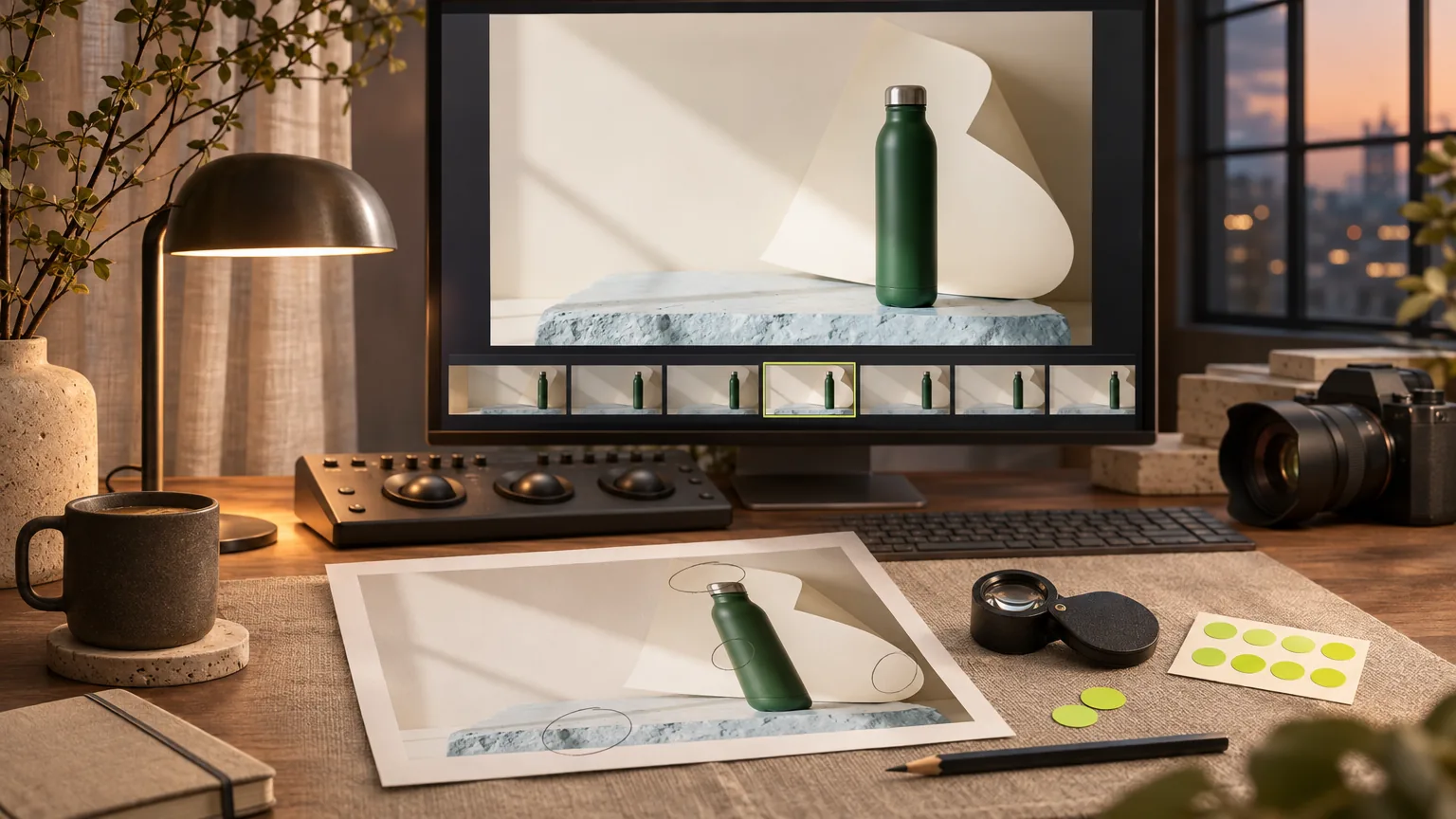
Watch at full speed, then step through it with the real product beside the screen.
- Label and logo: no warping, swimming letters or invented marks.
- Shape: handles, caps and edges match from first frame to last.
- Brand colours: no shift under the new light.
- Hands: five fingers, natural grip, nothing passing through the product.
- Physics: liquid pours down, steam rises, nothing appears from nowhere.
- Extras: no new props, signs or second products in the background.
- First second: the product or the problem is visible immediately.
- Claims: nothing implies a result the product cannot deliver.
A worked review is in how to review an AI product video before export.
Add text, captions, music and voice-over
Generated video cannot draw exact wording, so every word goes on after generation:
- Captions and offer: in Cut Marketing’s Finish the Ad tool (auto captions, hook, price and call-to-action text, AI voice-over and a free-to-use music track, exported in 9:16, 1:1 and 4:5), or in any editor such as CapCut, Premiere Pro, DaVinci Resolve or Canva. Keep text inside the platform safe zones.
- End card: close on your real product photo with the exact name, price or offer. That is where the precise label belongs.
- Music: use tracks you have commercial rights to. TikTok says businesses cannot use its general music library for commercial use and should use the Commercial Music Library for video ads and other commercial content.
- Voice-over: Finish the Ad reads your script as AI narration, in Korean too. To use your own voice, record it yourself, because voice cloning is not offered. Keep the key message in captions too, since many people watch with the sound off.
Export per platform: 9:16, 1:1 and 16:9
Generate the shape you will run instead of cropping a finished clip.
| Ratio | Where it runs | Export size | How to get it |
|---|---|---|---|
| 9:16 | TikTok, Reels, YouTube Shorts, Stories | 1080×1920 | Expand the photo to 9:16, generate at 9:16 |
| 1:1 | Facebook and Instagram feed | 1080×1080 | Generate at 1:1, or crop a centred 9:16 master |
| 16:9 | YouTube in-stream, website, product pages | 1920×1080 | Expand to 16:9 and generate separately |
Veo 3.1 Fast and Gemini Omni Flash 1.2 do not offer 1:1. Safe zones and file settings are in the TikTok, Reels and Shorts ad specs.
Where to publish the video
Download the file and upload it yourself, or connect your Meta, Google Ads or TikTok ad account in a campaign and let Cut Marketing upload it as a paused ad that you turn on. Cut Marketing never turns ads on or spends money, and daily ad-level results come back matched to the video by its creative code.
- Meta: use placement asset customisation so Reels and Stories get the 9:16 file and feeds get the 1:1.
- TikTok and YouTube Shorts: 9:16, hook in the first second, and the platform’s AI disclosure where it applies.
- Shopify: uploaded product videos can be up to 10 minutes, 1 GB and 4K, as .mp4, .mov or .webm (Shopify Help Center).
- Amazon: listing-video eligibility and file rules depend on your account; check the video upload page in Seller Central first.
Worked example: three clips for one product
A matte ceramic mug, three 9:16 clips (turntable, coffee pour with steam, presenter holding the mug), two variants each. Kling 4.0 drafts at 720p, so the better draft is the final; the Seedance clips draft at 480p and get one 720p final.
| Step | Tool and settings | Credits |
|---|---|---|
| Prepare the photo | Enhance 8 + background removal 8 + Expand to 9:16 8 | 24 |
| Clip A drafts | Product Video, Kling 4.0, 720p, 5 s × 2 | 280 |
| Clip B drafts | Product Video, Seedance 2.5, 480p, 5 s × 2 | 200 |
| Clip C drafts | UGC Product Video, Seedance 2.5, 480p, 8 s × 2 | 320 |
| Clip A final | The better 720p draft | 0 |
| Clip B final | Seedance 2.5, 720p, 5 s | 220 |
| Clip C final | Seedance 2.5, 720p, 8 s | 352 |
| Total | 1,396 |
That is $13.96 at the $0.01 list rate.
For less, make all three clips on Wan 3.0 at 720p, 5 seconds, two variants each: 420 credits plus 24 for the photo, 444 in total ($4.44), well inside one $9 Starter month, with less control over the turntable shot. Prices exclude tax, and top-ups need an active plan; see pricing.
FAQ
Can I make a product video ad from just one photo?
Yes. Image-to-video models take one still as the first frame and animate it for 4 to 15 seconds from a written prompt. One sharp photo of the whole product is enough for a turntable, a push-in, a pour or a hand-held shot. Captions, music and the call to action go on afterwards in Finish the Ad in the studio, or in any editor.
What kind of product photo works best for AI video?
A sharp photo with the whole product visible, soft even light, a matte surface, a simple background and space around the product, already in the ratio you will publish. Mirror-like, transparent and text-heavy products are the hardest, because the model has to invent reflections, what sits behind the glass and the letters on the pack as it moves.
How much does it cost to turn a product photo into a video?
In Cut Marketing video is billed per second, from 32 credits ($0.32) for an 8-second Veo 3.1 Fast clip. A 5-second Wan 3.0 clip at 720p costs 70 credits ($0.70), a 5-second Seedance 2.5 clip starts at 100 ($1.00) and a 5-second Kling 4.0 clip starts at 140 ($1.40). Credits list at $0.01; the worked example in this guide makes three finished clips for one product for 1,396 credits.
Will the AI keep my product label readable?
Not reliably. Small print, ingredient lists and dense packaging text tend to warp or turn into lookalike letters once the camera or product moves. Keep moves slow, frame the product wide enough that the label is not the subject, and end the ad on your real packshot with the exact text added in Finish the Ad or an editor.
Does Cut Marketing add captions, music or a voice-over to the video?
Yes, after generation. The Finish the Ad tool joins your clips and adds auto captions, your exact hook, price and call-to-action text, an AI voice-over from your script and a free-to-use background track, then exports 9:16, 1:1 and 4:5. Generated video itself still cannot draw exact wording, so text always goes on in this step. Voice cloning is not offered.
Can I make a product video with the free trial?
No. New accounts get 30 one-time trial credits, and the cheapest clip, an 8-second Veo 3.1 Fast clip, costs 32. Use the trial to prepare the photo (background removal and Expand are 8 credits each), then subscribe from $9 a month when you are ready to generate video. Small businesses can also apply for the free promo video program, where the Cut Marketing team makes the video at no cost for the businesses selected by draw.
Next step: animate your own product photo
Sign in with Google, clean up your still in Photo Editor Studio, then open Product Video in the studio, upload the photo and check the credit cost before you generate. For the vertical-ad workflow end to end, read how to make TikTok, Reels and Shorts ads with AI; for budgeting a whole month, see how much an AI video ad costs.
For retake budgeting and a reusable pre-publication checklist, see AI product video: prompts, costs and review checklist.