AI CREATIVE WORKSPACE

Speech is one half of the ad; the performance is the other

Write the line and describe who delivers it. The studio focuses on the presenter scene, while you choose an audio track you have the rights to or a model with native audio.

  • Product-first video, image and presenter tools
  • A credit quote before you generate
  • One asset library for the whole set

A practical workflow to pair a spoken product line with a presenter video direction. The studio focuses on the visual performance and uses the audio you bring or the selected model's capabilities.

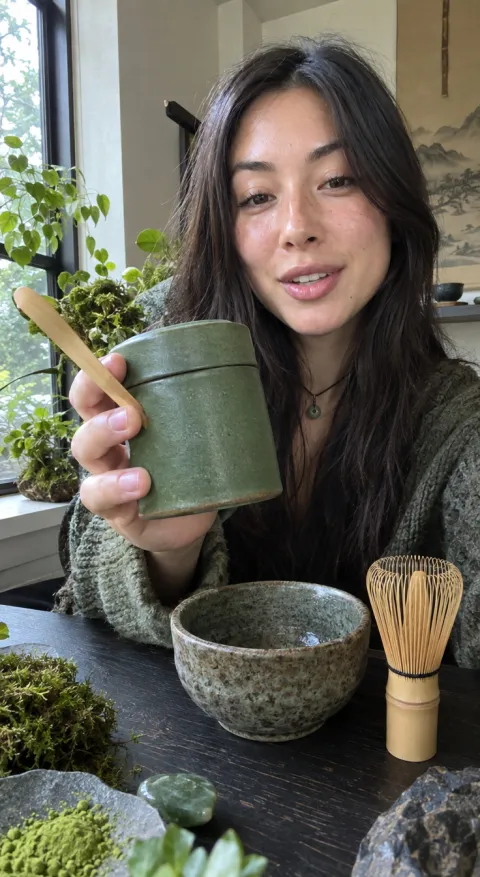
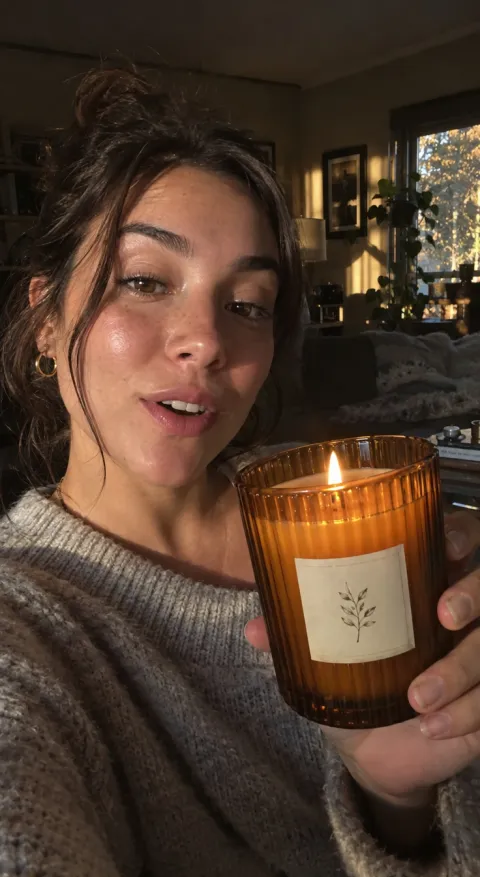
UGC selfie example for Amber Scented Candle UGC selfie
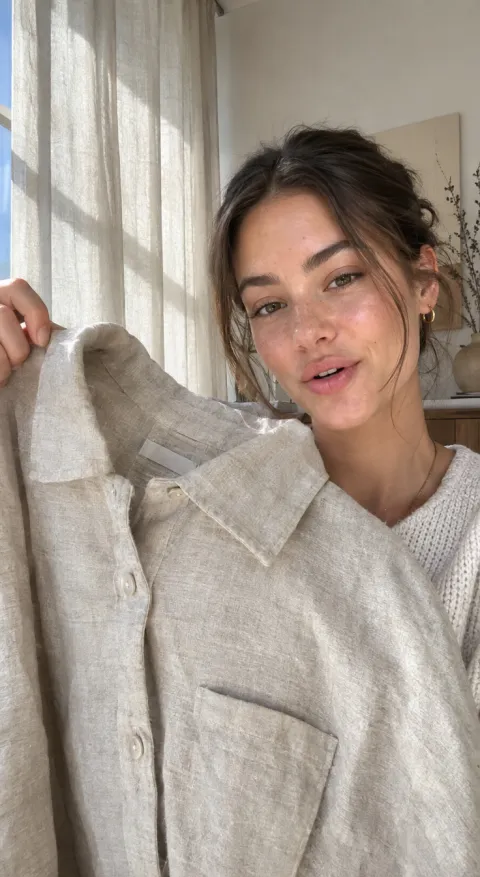
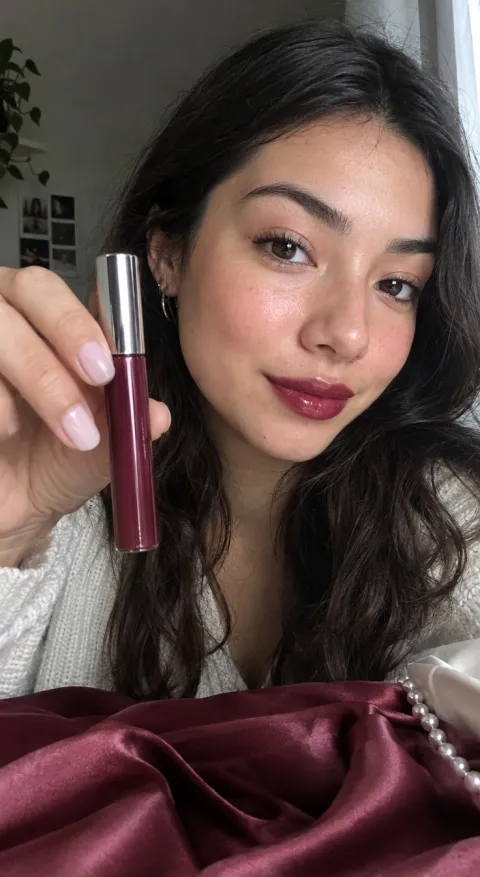
UGC selfie example for Berry Lip Tint UGC selfie
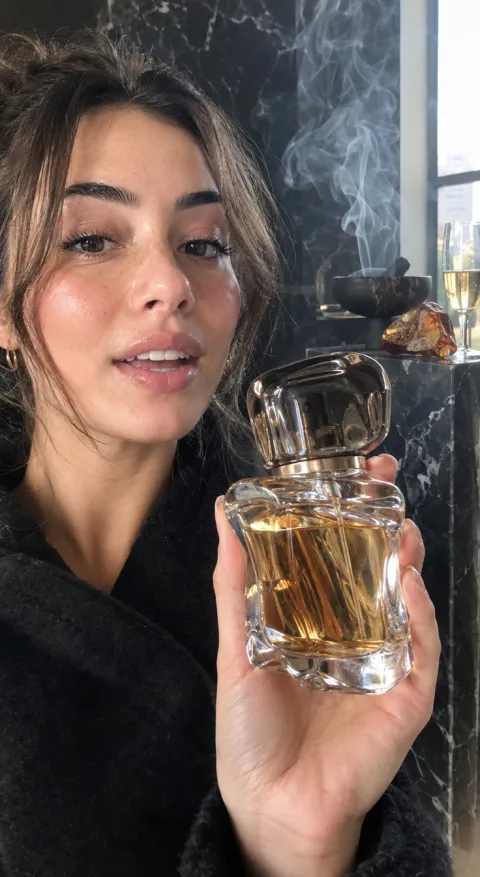
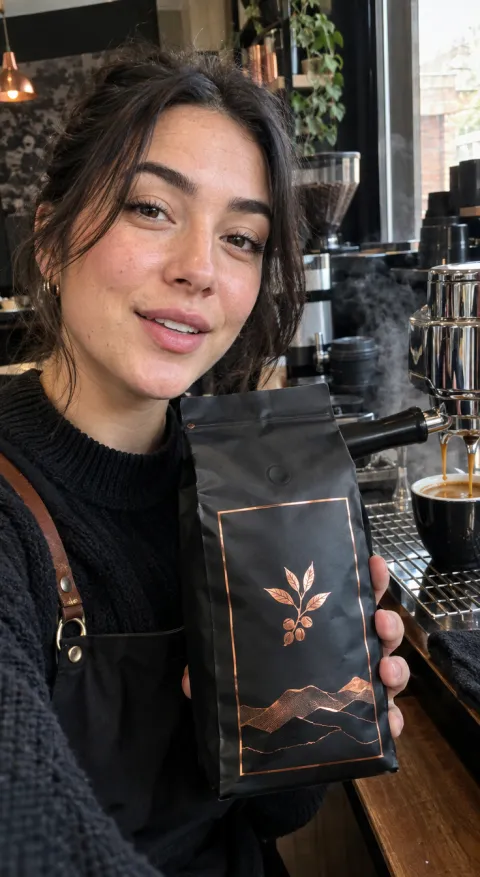
UGC selfie example for Sculptural Eau de Parfum UGC selfie

02 / HOW IT WORKS

Prepare the audio, then the visual

  1. Prepare the script and the audio you have

    Write the line and decide whether you will use an existing recording or a model with native audio. Voice cloning is not part of this workspace.

  2. Choose the presenter and scene

    Describe the person, setting, product moment and the delivery style you need for the placement.

  3. Generate and review the performance

    Check the result against the script and keep the take that feels natural enough to test.

03 / WHAT YOU CAN DO

Plan the performance around the line

01 / THE LINE

Start with the sentence people should remember

Write the spoken line, the pause and the reaction you want. AI speech generator pairs that direction with a presenter scene; it does not clone a voice or replace a voice actor.

Bring a line into the studio
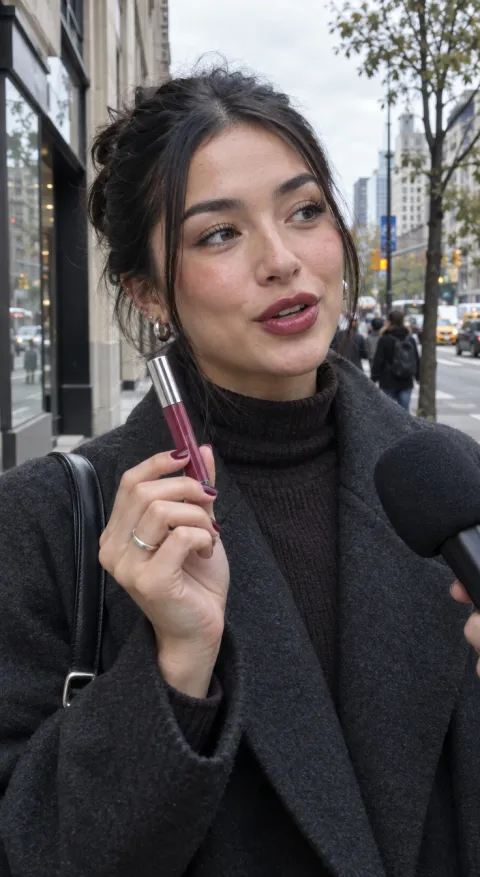
Street interview direction for Berry Lip Tint Street interview
Street interview

02 / THE PERFORMANCE

Give the presenter a reason to move

Describe where the product enters, how the presenter holds it and what the reaction should be. presenter-led video scenes read better when the body language matches the sentence instead of a generic smile at the camera. The performance to plan: pair a spoken product line with a presenter video direction.

Build the presenter scene
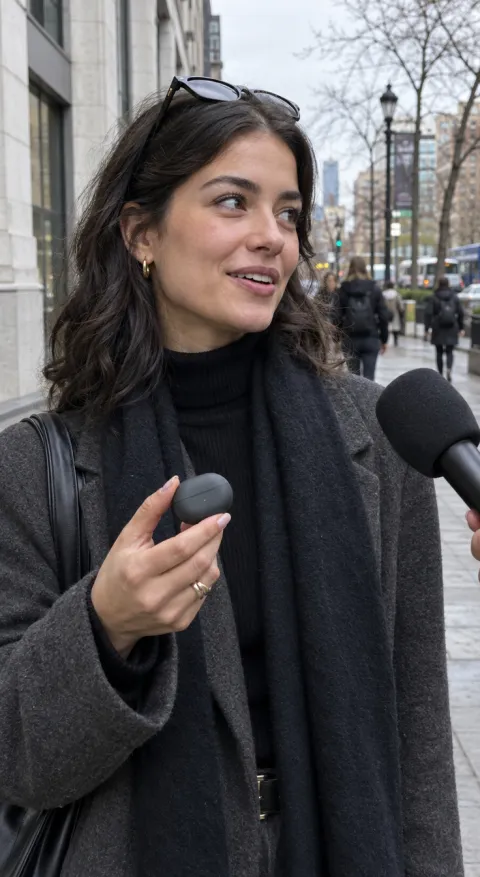
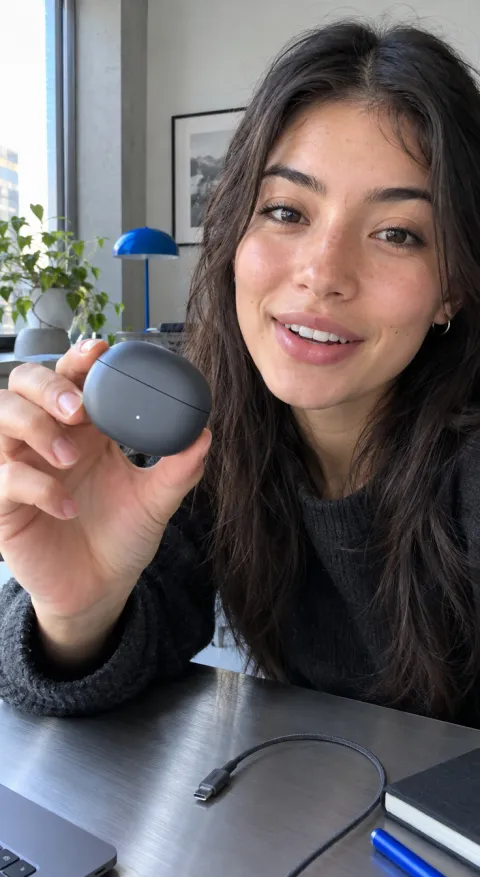
Street interview direction for Pebble Wireless Earbuds Street interview
Street interview

03 / THE REVIEW

Check the take before it becomes the ad

Watch the mouth shape, the product handling and the pacing against the audio. Keep the version that reads naturally, then fix the copy or the scene in the next take.

Review another take
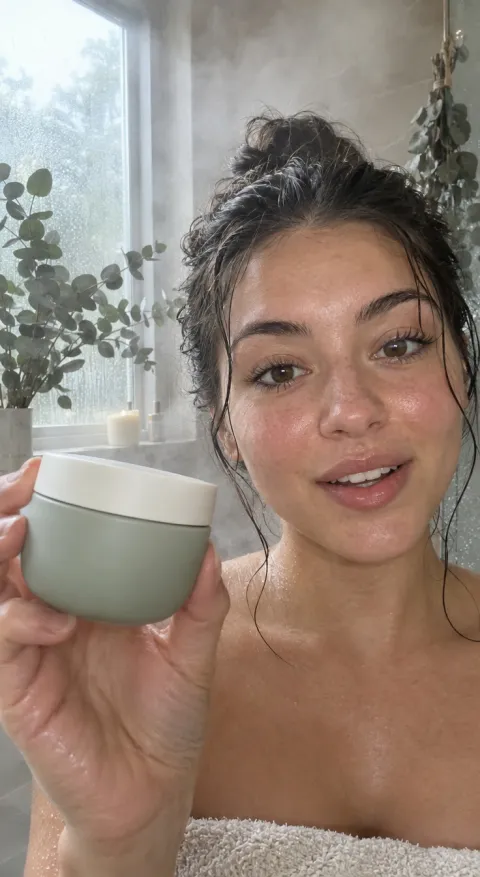
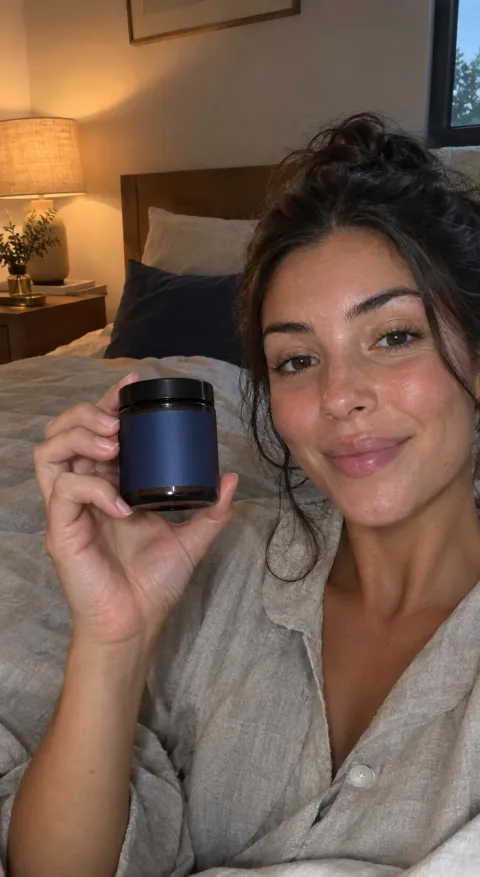
UGC selfie direction for Cleansing Balm UGC selfie
UGC selfie

04 / START FROM AN EXAMPLE

Open a frame as a visual reference and adapt the scene to the line you have.

Create a presenter video

05 / USE CASES

Where presenter-led voice creative fits

Spokesperson ads

Put a human face on a product explanation without arranging a studio shoot.

Product demonstrations

Pair a short demonstration with a clear spoken benefit and a direct close.

Localized creative planning

Plan the same scene for different languages, then review each performance carefully.

06 / WHY THIS WAY

Honest about what the studio does

Visual performance is the focus

The workspace generates the presenter scene; bring the voice track you have rights to.

No voice cloning claim

This is not a voice-cloning product. Use the audio you can legally use and review the result.

Review before publishing

Exact lip synchronization is not guaranteed, so keep the take that reads naturally.

A visual-first route to a presenter video

Area This workflow A manual production loop
Voice source Audio you provide or model-native audio where supported Book a voice actor and a studio
Performance Describe the scene and generate a take Coordinate talent, direction and edit
Review Compare takes in the workspace Wait for a new recording session

07 / FAQ

Questions about voice and presenter video

Can I clone a voice with this workspace?

No. Voice cloning is not offered here. Use an audio track you have the rights to, or a selected video model that supports native audio.

Can I use my own recording?

The lip-sync and presenter workflows are designed around an audio or performance direction. Check the selected tool's upload fields before you start.

Is the lip-sync exact?

Exact dialogue and lip synchronization are not guaranteed. Review every take before publishing.

Can I change the language later?

You can plan a new take in another language, but the studio does not provide automatic translation or dubbing.

What should I check before publishing?

Check pronunciation, product claims, mouth shapes, on-screen text and the platform's synthetic-media rules.
09 / START HERE

Give the line a face, then review the take.

Open a presenter tool, add the product and the performance direction, then check the result against your audio.